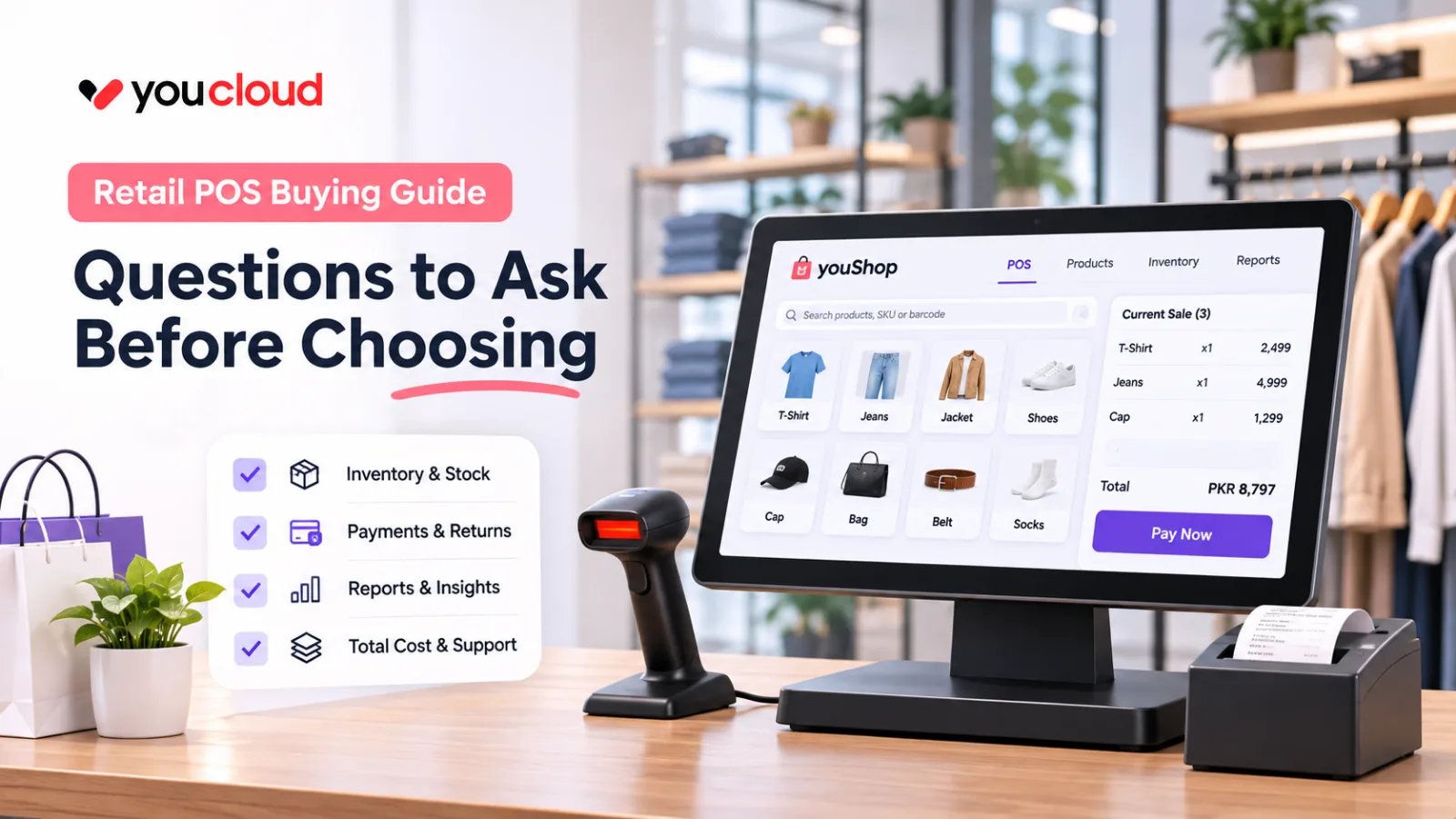
Point of Sale Hardware: What Retail Stores Actually Need
A practical guide to retail POS terminals, scanners, printers, card readers and cash drawers, with buying tips to avoid unnecessary hardware.
A checkout can seem simple until the store gets busy. A barcode fails to scan, the printer stops, and customers wait in line. The right point of sale hardware helps staff serve shoppers faster. However, that does not mean buying every device on the market.
For example, a small boutique may need only a handheld POS. A busy grocery store may need a fixed counter, scanner, and cash drawer. So, start with the way your store works.
What Counts as Point of Sale Hardware?
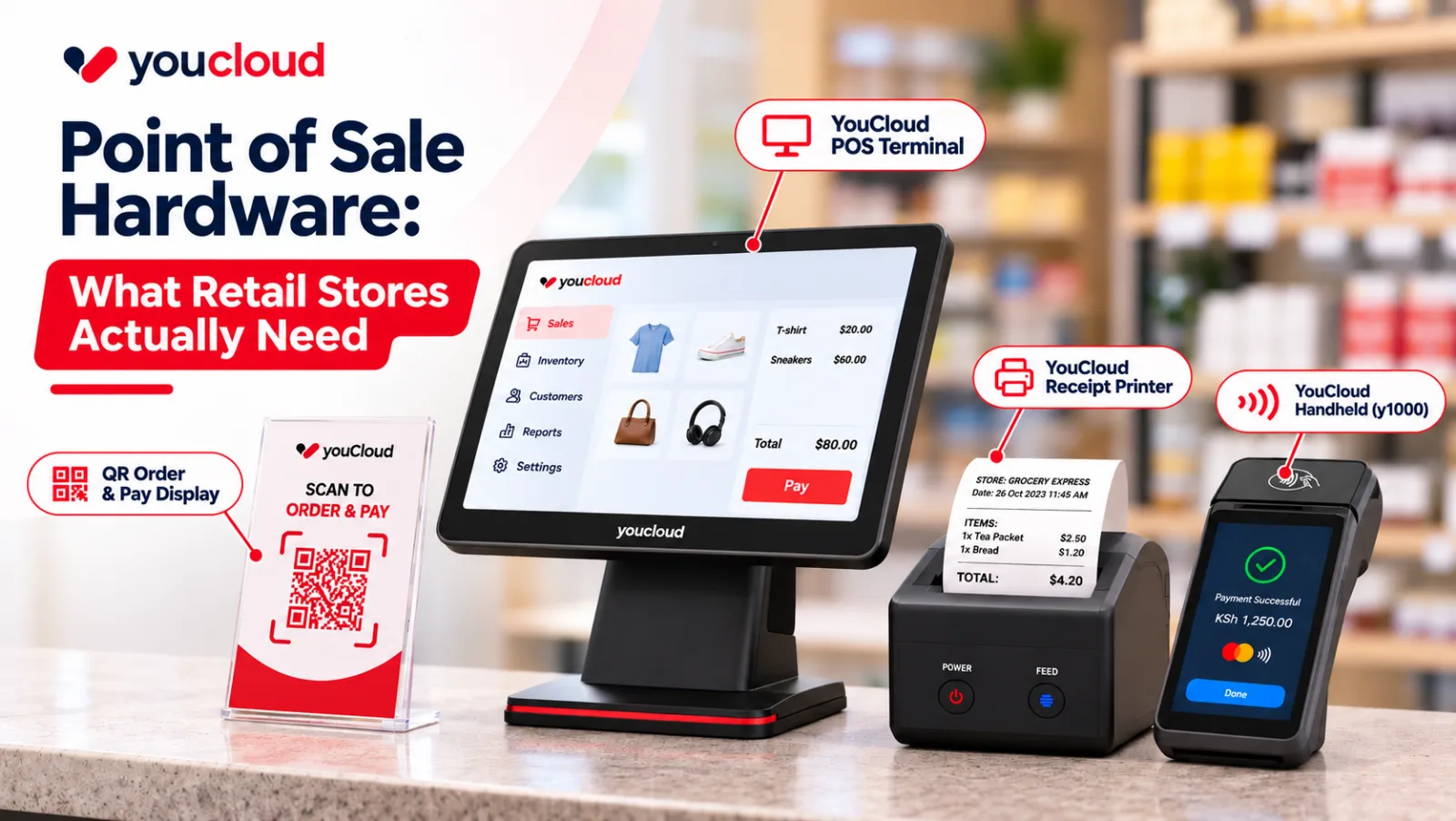
Point of sale hardware includes the tools your staff use to complete a sale:
- POS terminal or tablet: Adds items, applies discounts, and records sales.
- Barcode scanner: Finds products without typing item codes.
- Receipt printer: Prints receipts when customers need them.
- Card reader: Takes supported card and contactless payments.
- Cash drawer: Stores cash and helps with shift closing.
- Power and internet setup: Helps your checkout run through the day.
Still, not every shop needs every item. Choose POS equipment based on your sales, payment methods, and counter space.
Five Hardware Decisions That Matter
1. Fixed Counter or Handheld?
A fixed touchscreen works well when staff stay at one checkout. In contrast, a handheld POS lets staff bill customers on the shop floor. It can also save space in a small store.
If you already have a suitable phone, a mobile setup may work. First, check that the software and payment tools support it.
2. Built-in Scanner or Separate Scanner?
A scanner saves time when you sell many items or product sizes. For example, a busy grocery store may prefer a scanner at the counter. A handheld device with a built-in scanner can suit smaller shops.
Also, ask if the scanner works for stock counts and new deliveries. That way, one device may help with more than checkout.
3. Printed or Digital Receipts?
Digital receipts can save paper. However, some shoppers still want a printed copy. Returns and local rules may also call for a printout.
So, check how fast the printer works and how easy it is to change paper. Also, make sure paper rolls are easy to buy.
4. How Will Customers Pay?
Start with the ways your customers like to pay. These may include cards, contactless payments, and QR codes.
Next, check that each payment appears in your POS sales record. Also, ask what happens if the internet goes down. Offline billing does not always mean offline card payments will work.
5. Do You Need a Cash Drawer?
A cash drawer helps stores that take cash every day. It can also help when several cashiers share a counter.
However, a mostly cashless pop-up may not need one. If you take cash, check how the system tracks refunds, cash floats, and shift totals.
Match POS Devices to Your Store
Different shops need different setups. Here are a few places to start:
- Stall or pop-up: Start with a suitable phone or handheld POS. Later, add a small receipt printer if needed.
- Boutique: Try a handheld or counter POS. Then, add a scanner or cash drawer if sales call for it.
- Busy grocery store: Use a counter POS, scanner, and receipt printer. As sales grow, consider another checkout or a customer display.
- Self-service location: Start with a staff-run POS. Later, consider a kiosk for tasks that shoppers can handle on their own.
These are guides, not fixed bundles. In fact, a small shop with long queues may need more tools than a large shop with fewer sales.
Run Five Tests Before You Buy
Before you order, ask the seller to show you a real sale:
- Scan an item, including one with a worn barcode or a size choice.
- Take a payment, then check the receipt and sales record.
- Process a return using your store's refund rules.
- Turn off the internet and see which tasks still work.
- Close a shift and match cash and card sales to the totals.
After the demo, ask about the warranty and local support. Also, check how long repairs or device swaps may take. Good POS hardware should work well long after the first day.
Calculate the Real Hardware Cost
A low device price does not always mean a low total cost. So, compare both the first bill and the costs that follow:
- POS terminal, scanner, printer, and cash drawer
- Software fees and payment fees
- Paper rolls, batteries, and other supplies
- Setup, staff training, repairs, and new devices
Also, ask if all your POS devices work together. Fewer separate tools may mean fewer issues, but only if they fit your store.
Where youShop Fits
youShop offers several retail checkout options. For example, a phone-and-printer kit may suit a small shop. The y1000 handheld brings a screen, scanner, receipt printer, and card reader into one device.
Meanwhile, the y5000 counter POS suits a fixed checkout with a customer display. The y7000 kiosk offers a self-service option for suitable stores.
However, features, payment methods, and device options may vary by market and plan. Check the exact setup before you buy.
Choose What Your Store Needs
Good point of sale hardware makes checkout easier for staff and shoppers. Start with your busiest sales tasks. Then, choose the tools that solve real problems and work with your stock and payment systems.
Ready to improve checkout? Explore youShop retail POS options and find a setup that fits your store.